Smart lighting support
Do you need support with your smart lighting products? Read our frequently asked questions and find the answer to your problem. Below, you find information and support about BILRESA, KAJPLATS and MYGGSPRAY.
Connecting a Matter smart product
Before you start
- Make sure your IKEA Home smart app and DIRIGERA hub are updated to the latest version.
- Power on the product by fitting the power cable or inserting batteries.
- Smart products from IKEA are ready to connect for 15 minutes as soon as they are powered on.
After 15 minutes, the pairing window will close, and you need to:
- Press the system button once to start a new 15-minute pairing window. For smart lights, turn the light off and on again.
- If the product still won’t connect, factory reset by long pressing the system button for 10 seconds. For smart lights, follow the instructions in the IKEA Home smart app to turn the light off and on 6 times to a specific rhythm.
- A factory reset will clear any old data or previous connections so the product can connect again. A 15-minute pairing window will automatically open once the factory reset is complete.
Stay close while connecting
- Smart products connect using Bluetooth (BLE). Make sure you keep your phone close to the hub and product while they finish connecting.
- Matter products use a different network than the older IKEA smart products, like TRÅDFRI. It’s important to stay close to the hub to establish a strong connection, especially while connecting your first product.
The app will let you know
- When the IKEA Home smart app finds a product, you will get a messageasking if you want to add the product to your home. This means the product is ready to connect.
If nothing happens
- Sometimes a product stops being visible on your phone. This can happen if the connection has tried and failed several times.
- Try a factory reset to clear any old connections and start again.
Troubleshooting your home system
Sometimes a smart product shows in the app but does not properly connect to your home system. In this case, we recommend taking a closer look at your home system.
Check your Wi-Fi connection
- Smart products need a strong Wi-Fi connection to communicate with the hub.
- Make sure your mobile phone uses the same Wi-Fi network as the hub.
Restart your system
- To give your entire smart home system a nudge, restart the equipment in the following order:
- Restart your Wi-Fi router
- Remove the power cable for 30 seconds and reconnect to restart the router. - Restart your DIRIGERA hub
- Remove the power cable and connect again to restart any hub from IKEA. - Turn your mobile phone off and on again
- This will allow your phone to start up again and clear any stuck data.
Before trying to connect a product
- We recommend that you factory reset the product before trying to connect again. This ensures that both the home system and smart product are in the best condition to make a new connection.
General connectivity advice
If you still have issues connecting a smart product, we recommend looking at other areas or settings that can impact general connectivity in the home.
Disconnect other Thread border routers (temporarily)
- For homes with multiple systems and brands, you may need to temporarily disconnect their devices so we can make a stable connection.
- Follow the steps to connect:
- Remove the power cable from any other Thread border router
This includes Google Nest Hub (2nd generation), Apple TV (2nd generation +) or similar. - Try to connect your smart producto Use the IKEA Home smart app to connect the product.
- Connect the power cable to your Thread border routers again
This will allow the Thread mesh network to rebuild.
Set your Wi-Fi router to IPv6
- IPv6 will allow your smart products to communicate with the rest of your home system in a simple and secure way.
- Most routers are set to IPv6 by default, but you can check this in your router settings.
Set your mobile phone Wi-Fi network to 2.4 GHz
- A 2.4 GHz network provides a larger range of connectivity, meaning it can communicate with smart products in hard-to-reach places.
- To change your mobile phone Wi-Fi network to 2.4 GHz, go to settings on your phone.
If products go offline
Smart products need to communicate with the hub and home system. If the connection is interrupted, the product will appear offline in the IKEA Home smart app.
Check the power source
- The most common reason for a product going offline is a lack of power.
- For smart lights and similar products, check that the switch is turned on.
- For battery-powered devices, the IKEA Home smart app will notify you when the battery gets low.
Restart your DIRIGERA hub
- Remove the power cable and connect again to restart any hub from IKEA.
Using IKEA Home Smart products in other systems and encountering problems
If you are having issues or encounter challenges with adding or operating your devices in non-IKEA smart systems, please refer to their respective support pages for that system.
BILRESA
Does BILRESA work with other brands, like ZigBee products?
BILRESA is compatible with the IKEA Zigbee range (such as TRÅDFRI bulbs and drivers), either via DIRIGERA or direct hubless pairing.
Does BILRESA work with lights from other brands?
BILRESA can be used to control lights from other brands as long as they are a part of a Matter system.
How do I reset BILRESA?
Long-press the system button until the LED stops blinking red.
How can I directly pair BILRESA to another product without using a hub?
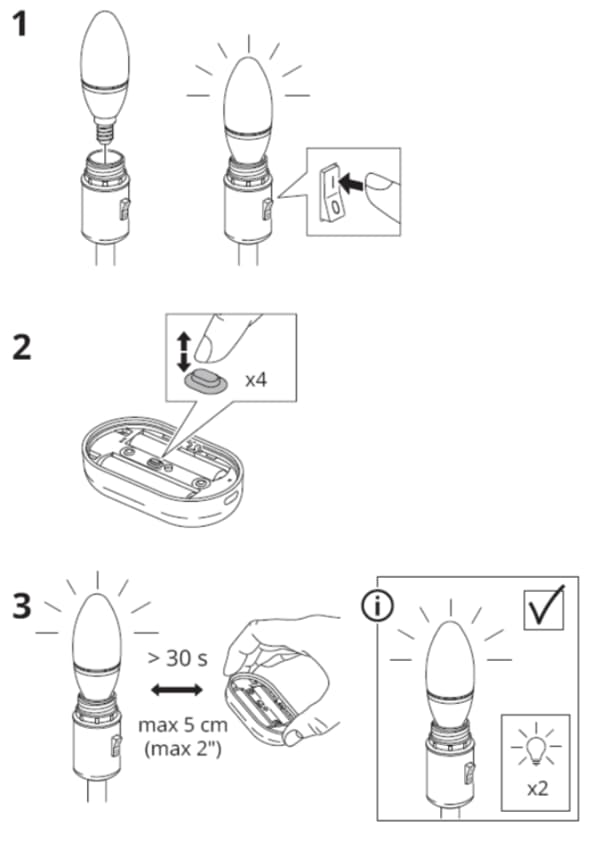
Press the system button 4 times and hold the remote close to the other product. The light should start pulsing, then blink twice once the pairing is complete.
Is it possible to connect two BILSERA remotes to a single bulb?
This only works when the lamp and the remote controls are connected to the DIRIGERA Hub and the IKEA Home smart app.
How to install a smart BILLRESA light bulb?
MYGGSPRAY
Is it possible to connect the new sensors, like MYGGSPRAY, to the old TRÅDFRI gateway?
No, the new sensors are not compatible with the TRÅDFRI gateway.
How do you connect the sensors to the app?
To use the new sensors with an app, you’ll need either the DIRIGERA hub or another smart home hub that functions as a Thread Border Router. Many modern smart home devices include this capability, such as certain Samsung TVs, Apple TVs, and Google Nest hubs. For the most seamless setup and user experience, we recommend using the DIRIGERA hub.
Unclear? Follow these instructions for MYGGSPRAY
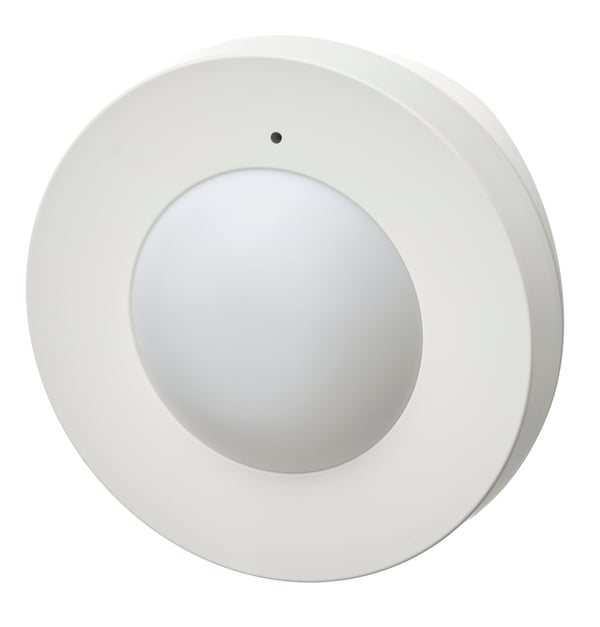
MYGGSPRAY has a single button, which is used for pairing and resetting the device.
Settings such as day/night mode and the delay before lights switch off can only be adjusted through a compatible hub and app. If the sensor is connected directly to lights without a hub, these settings cannot be configured and will operate with the default behaviour. For full control of features and settings, the sensor needs to be connected to a hub.
KAJPLATS
Can KAJPLATS bulbs be added to a smart system without Matter support (for example, a Zigbee-based system)?
The KAJPLATS bulbs are Matter devices and can only be added to a smart system that supports Matter and has a Matter hub, such as the IKEA Home smart & DIRIGERA hub. KAJPLATS can also be paired directly to IKEA remotes (such as BILRESA, RODRET & STYRBAR) without requiring a Matter system or a hub.
How can I pair my KAJPLATS to my already existing Home smart system?
To pair an IKEA KAJPLATS bulb to a smart system (IKEA Hub, Apple Home, Google Home, Alexa). When using the IKEA Home smart app, scan the Matter QR code found in the box with the bulb to add the device. The light will need to be in a socket with the power on for this to work.
How can I pair my KAJPLATS to a remote that already has a light connected to it?
Place the KAJPLATS into the socket. On the remote, press the button 4 times close to the bulb (5cm - 30cm), and the light will flash to signify it's been added.
Settings such as day/night mode and the delay before lights switch off can only be adjusted through a compatible hub and app. If the sensor is connected directly to lights without a hub, these settings cannot be configured and will operate with the default behaviour. For full control of features and settings, the sensor needs to be connected to a hub.
What is a thread connection, and how is it better for your home?
A thread connection is different to a normal Wi-Fi or Bluetooth as the more devices you have, the better they are connected. Which means they are no longer fighting for that connection; they create more of a web-like feature. Also, distance from the hub becomes less of an issue as the products in between help to strengthen it. And the battery life of the range improves with articles like smart bulbs and smart sockets acting as the thread, reducing the battery needs.